5 Powerful Cowork Mode Use Cases You Can Try Today
Five real workflows where Cowork mode saves hours every week.
Read more →Copy-paste ready - tested for documents, research, Excel, PowerPoint, and more.
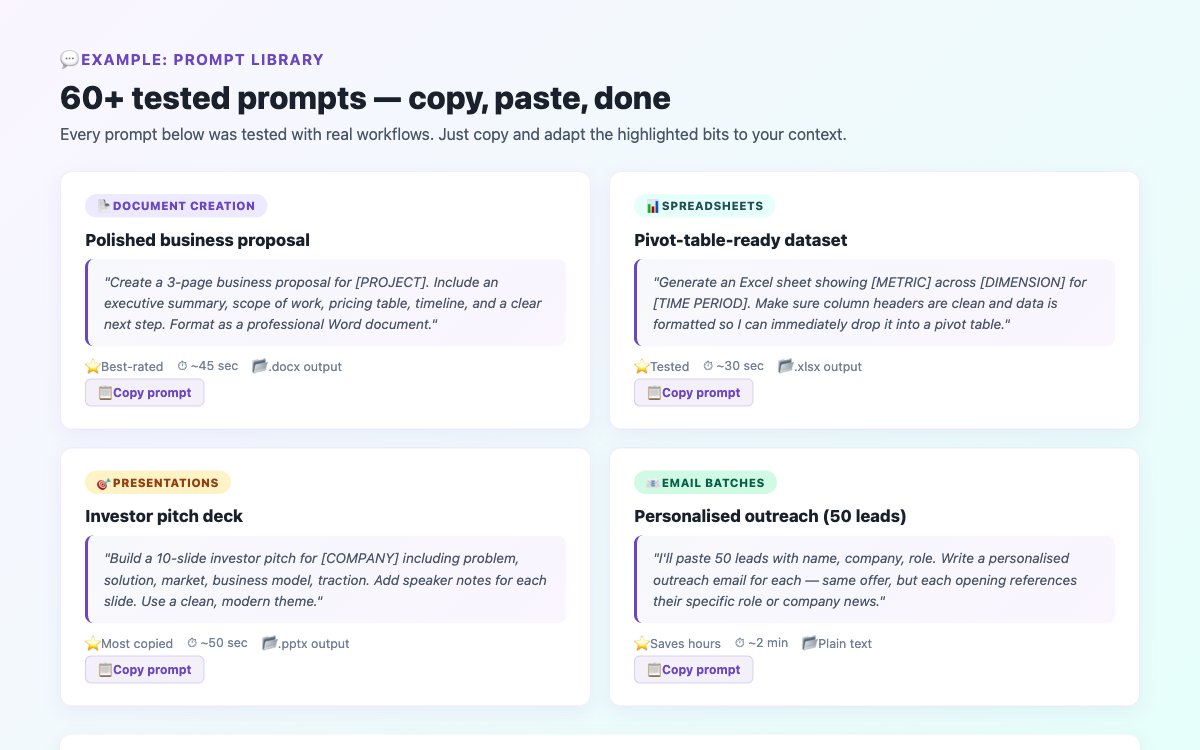
The quality of your output from Claude Cowork mode is directly tied to how clearly you describe the task. A vague prompt like "make a report" gets you a generic result. A specific, well-structured prompt gets you a professional, ready-to-use file. The prompts below have all been tested and refined for the best results.
Use this when you need a polished .docx file - a report, a proposal, or a client brief. The key is to specify the sections you want and the audience.
Create a Word document (.docx) for a quarterly business review. Include these sections: Executive Summary, Key Metrics, Wins & Challenges, and Next Quarter Goals. Use professional formatting with headings, a summary table, and bullet points. Target audience: senior management. Save the file as "Q1-Review.docx".
Pro tip: Always specify the exact filename and format. This prevents Claude from guessing and saves you a step.
Claude can generate .xlsx files with working formulas, conditional formatting, and multiple sheets. Describe your data structure clearly.
Create an Excel spreadsheet for tracking monthly expenses. Include columns: Date, Category, Description, Amount, and Running Total. Add a SUM formula for the total, a dropdown list for Category (Food, Transport, Housing, Utilities, Other), and conditional formatting to highlight any row over £200 in red. Save as "Monthly-Expenses.xlsx".
For presentations, Claude works best when you give it a clear topic, the number of slides, and the audience. Include a note about tone - formal vs. casual changes the result significantly.
Create a 10-slide PowerPoint presentation about "The Benefits of AI Automation for Small Businesses". Audience: small business owners with no technical background. Tone: approachable and motivational. Each slide should have a short headline and 3-4 bullet points. Include a title slide, 8 content slides, and a closing call-to-action slide. Save as "AI-Automation-Pitch.pptx".
Cowork mode can search the web and compile findings into a document. Be specific about the depth of research and the output format you need.
Research the top 5 trends in remote work for 2026. Search for recent articles and reports published in the last 6 months. Summarise each trend in 2-3 paragraphs, include the source URL, and compile everything into a Word document with an executive summary at the top. Save as "Remote-Work-Trends-2026.docx".
Pro tip: Adding "published in the last 6 months" or "from reputable sources like BBC, Forbes, or Reuters" dramatically improves the quality of research results.
First, give Claude access to your folder using the folder-picker. Then use a prompt like this to clean up messy file structures.
Look at the files in the folder I've selected. Rename each file using the pattern: YYYY-MM-DD_description (e.g. "2026-03-15_invoice-acme"). Use the file creation date for the date prefix. If a file has no clear description, use the first meaningful words from its name. Tell me what you plan to rename before making any changes.
Pro tip: Asking Claude to "tell me what you plan to do before making changes" gives you a review step - essential for irreversible operations like renaming.
If you have a list of prospects or contacts, Claude can draft personalised emails for each one - adapting the tone and detail based on information you provide.
I have a list of 5 potential clients in the attached CSV. Each row has: Name, Company, Industry, and a note about their main challenge. For each contact, draft a short outreach email (under 150 words) introducing my consulting service. Personalise each email using their company name and challenge. Output all 5 emails in a single Word document. Save as "Outreach-Emails.docx".
This prompt is designed to be saved as a Scheduled Task that runs automatically every morning. It pulls together your priorities into a short summary document.
Every morning at 8:30 AM, produce a short daily briefing document. Include: today's date, the top 3 things I should focus on today (based on any tasks in my folder called "priorities.txt"), one motivational quote, and today's weather for London, UK. Save the briefing as "Briefing-YYYY-MM-DD.docx" in my output folder.
How to set it up: In Cowork mode, use the Scheduled Tasks feature and paste this prompt as the task instructions.
Cowork mode can read and analyse uploaded documents. This prompt works well for contracts, reports, or any PDF you need to process quickly.
Read the PDF I've uploaded. Identify: (1) the main purpose of the document, (2) any key dates or deadlines, (3) any obligations or action items mentioned, and (4) any risks or red flags I should be aware of. Format the output as a structured briefing note in a Word document. Save as "Doc-Analysis.docx".
Paste raw data (from a meeting, a CSV, or even rough notes) and ask Claude to clean and structure it for charting or reporting.
Here is raw monthly sales data pasted below. Clean it up, remove any duplicates, sort it by date, and add a monthly total row at the bottom. Then create a simple line chart showing the sales trend over the months. Save as "Sales-Chart.xlsx" with the data on Sheet 1 and the chart on Sheet 2.
Paste a URL or upload a document and ask for a concise summary with the key takeaways formatted for quick reading.
Visit this URL: [paste URL here]. Read the full article and produce a 1-page summary with: a 3-sentence headline summary at the top, 5 key takeaways as bullet points, and a section called "What This Means For Me" with 2-3 practical implications for a small business owner. Save as "Article-Summary.docx".
Across all these prompts, a few principles hold true. Always specify the output format and filename - don't leave Claude to guess. Include the audience or purpose (e.g. "for a senior manager" or "for someone with no technical background") because it dramatically changes the tone. Break complex tasks into steps if needed, and use "tell me your plan before you start" for any task that touches your actual files. Read the full prompting guide for more detail.
Join the community for insights, updates and practical how-tos.