Scheduled Tasks Guide for Cowork Mode
Set Claude to run daily, weekly, or one-off jobs on its own.
Read more →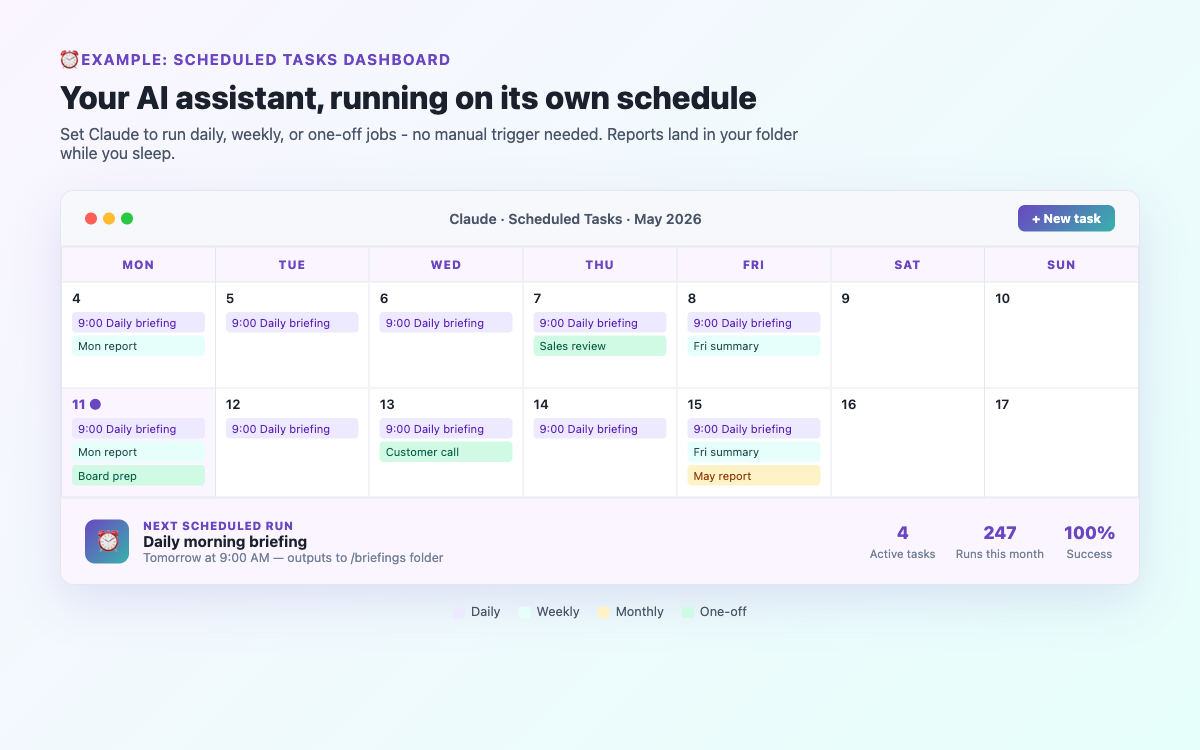
Monday mornings used to follow a predictable and exhausting pattern. Coffee, inbox, panic, spreadsheet updates, chase emails, write the week's plan, pull together last week's numbers, realise I've already lost an hour and a half before doing anything that actually moves the needle. Sound familiar? Here's what I changed - and how you can copy it exactly.
The frustrating thing about Monday morning admin is that none of it is actually hard. It's just slow, repetitive, and mentally costly at exactly the time when your brain is freshest. Checking last week's numbers, summarising them, writing a weekly plan, drafting the Monday team update email - these tasks collectively take about 90 minutes and contribute almost nothing that requires your actual thinking.
They're the perfect candidate for automation. And Claude Cowork mode handles all of them.
I set up four automated tasks in Cowork mode. Each one runs on a schedule - I wake up on Monday and by the time I've made coffee, everything is already done. Here's exactly what each task does and the prompt I used to set it up.
I keep a running Excel file called weekly-tracker.xlsx in my workspace folder. Every Monday morning, Claude opens it, reads last week's figures across all tabs, and creates a clean one-page summary document called week-summary.docx. It highlights anything above or below target in bold, and adds a plain-English two-line note at the top explaining what was notable.
This one reads the week-summary that Task 1 just created, looks at a text file I update on Fridays called notes-friday.txt (where I jot down anything unfinished or important), and produces a prioritised plan for the week. It formats it as a clean numbered list with three sections: Must Do This Week, Should Do If Possible, and Carry Forward.
Every Monday I send a short team update. This used to take me 20 minutes to compose because I'd have to remember what happened last week, what's coming up, and frame it positively. Now Claude reads the weekly summary and plan, and drafts the email. I just review it, tweak a line or two, and send. The whole thing takes me 3 minutes instead of 20.
This is the one that surprised me most. Claude searches the web for news from the past 7 days on topics I care about (in my case: AI tools, productivity software, and industry news in my sector), reads the most relevant articles, and creates a 5-bullet briefing document. It saves me the 20 minutes I used to spend scanning LinkedIn and news sites every Monday.
minutes saved every Monday morning
weeks running without a single failure
minutes to review and personalise everything
The numbers summary and weekly plan are genuinely better than what I used to produce manually. Because Claude reads all the data systematically, it doesn't miss things that I'd gloss over when skimming. The email drafts need minor edits about half the time - usually just a tone adjustment or adding something specific that happened that week. The news digest is hit and miss depending on what's happening in the news cycle, but it's still faster than reading it all myself.
The biggest surprise was how consistent it is. I expected to spend a lot of time fixing things that went wrong. In six weeks, Task 4 (web search) once came back with slightly stale results, and one time Task 2 produced a plan that was a bit too cautious. Both were easy to fix with a quick follow-up message. Everything else ran perfectly.
The second surprise was how much the chaining matters. Each task builds on the previous one - the plan uses the summary, the email uses both. This means the outputs are actually coherent and connected, not just isolated automations. That's something Zapier-style automations struggle to do.
The exact setup will depend on your work, but the pattern is the same: identify the 3–4 repetitive tasks that take up your Monday morning, put the input files in a consistent workspace folder, and write a scheduled task prompt for each one. The Getting Started guide walks through setting up scheduled tasks in detail. If you get stuck, the Community Q&A has specific questions about scheduling and workspace setup with detailed answers.
The one piece of advice I'd give: start with just one task, run it for two weeks, and refine the prompt before adding more. Don't try to set up four automations on day one - you'll have a better sense of what Claude needs from you after seeing one task run a few times.
Have you automated part of your routine with Cowork mode? Share what's working (or not) in the Community Q&A - real examples from real users are the most useful thing on this site.
Co-Founder of BrandStori.AI with 25+ years of experience in the IT industry. Also the creator of @ottasia/mcp-server - an MCP server with 500+ npm downloads, listed in the official MCP Registry. A daily user of Claude's Cowork mode - every guide on this site is personally tested before publication, so you can trust what you read here.
Hand-picked guides covering related topics.
Set Claude to run daily, weekly, or one-off jobs on its own.
Read more →Tested prompts for docs, Excel, PowerPoint, and more.
Read more →Five real workflows where Cowork mode saves hours every week.
Read more →Get tips, updates & community insights on Claude's Cowork mode - straight to your inbox.
Get weekly tips, Q&A highlights & Cowork mode updates.