Automate Your Monday Morning Routine
Wake up to briefings, reports, and to-do lists already done.
Read more →Set it once, let it run forever - daily briefings, weekly reports, file cleanups, all automated.
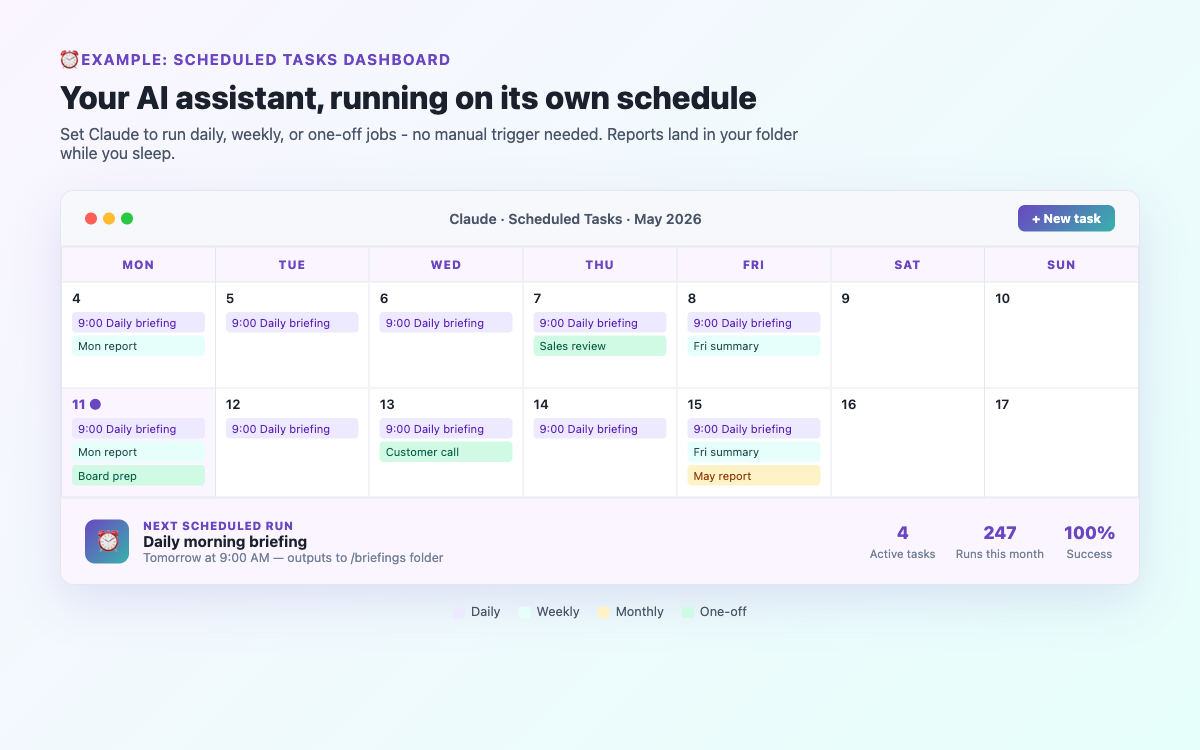
Most people use Cowork mode reactively - open it, ask for something, get a result. But Scheduled Tasks flips this around. Instead of you going to Claude, Claude comes to you. At whatever time and frequency you set, it runs a task automatically, saves the output to your folder, and has it ready when you need it. It is the closest thing to having a real assistant who works while you sleep.
Scheduled Tasks is a built-in feature of Claude Cowork mode that lets you define a task once and have it run automatically on a schedule. Daily, weekly, monthly, or at a specific time - you decide. The task runs in the background on your computer, and the output - a document, spreadsheet, summary, or any other file - appears in your designated folder.
You do not need to be at your computer when the task runs. As long as your machine is on and the Claude desktop app is running, tasks execute on their own.
Step 1: Open Claude Cowork mode and make sure a folder is selected (folder icon at the bottom of the chat).
Step 2: Click the Schedule icon or access Scheduled Tasks from the menu.
Step 3: Write the task instructions - exactly what you want Claude to do, written for automatic execution.
Step 4: Set the frequency (daily/weekly/monthly), day (if weekly), and time.
Step 5: Click Save. The task runs at the next scheduled time.
1. Daily Morning Briefing
Every weekday at 7:30 AM, create a morning briefing. Include: today’s date, a motivational quote, the top 3 priorities from my "today-priorities.txt" file if it exists, and any reminders from my "reminders.txt" file. Save as "Morning-Briefing-YYYY-MM-DD.docx" in my Briefings folder.
2. Weekly Business Summary
Every Friday at 5:00 PM, create a weekly summary. Read files in my "completed-this-week" folder and list what was finished. Read "in-progress.txt" and list what is outstanding. Search for 3 key headlines from my industry this week. Save as "Weekly-Summary-YYYY-MM-DD.docx".
3. Monthly Expense Summary
On the 1st of each month at 9:00 AM, read all CSV files in my "expenses" folder from last month. Create an Excel summary showing total spend by category, total overall, and the 5 largest expenses. Compare to previous month if available. Save as "Expenses-[Month]-[Year].xlsx".
4. Daily Industry News Digest
Every weekday at 8:00 AM, search the web for the top 5 news stories from the last 24 hours relevant to [your industry]. For each story, write 2-3 sentences - what happened and why it matters. Save as "Industry-News-YYYY-MM-DD.docx".
5. Weekly File Organiser
Every Sunday at 8:00 PM, look at all files in my Downloads folder. Move PDFs to a "PDFs" subfolder, images to "Images", spreadsheets to "Spreadsheets". Delete any .tmp or .crdownload files. Save a log of what was moved as "File-Tidy-Log-YYYY-MM-DD.txt".
Specify the output filename. Always use "save as [name]-YYYY-MM-DD.[ext]" - the date variables auto-fill with the current date.
Reference files by exact name. If your task reads from a file like "priorities.txt", keep that file in your selected folder with exactly that name.
Test manually first. Run the task once in normal chat before scheduling it. It is much easier to fix the prompt manually than to discover a problem when the task runs at 7 AM.
Keep tasks focused. One well-defined task per schedule works better than trying to do everything in one mega-task.
Your computer must be on. Scheduled tasks require the Claude desktop app to be running. If your computer is off or sleeping at the scheduled time, the task will not run until the next occurrence.
Scheduled tasks become even more powerful with MCP connectors. A task that reads your Slack messages, summarises them, and saves the digest to your folder every morning is entirely possible. Read the MCP Connectors guide to learn how to connect your apps to Claude.
Join the community for insights, updates and practical how-tos.