Automate Excel Reports with Cowork Mode
Build formulas, charts, and pivot tables with no code.
Read more →From blank slide to polished deck in minutes - prompts, tips, and real examples.
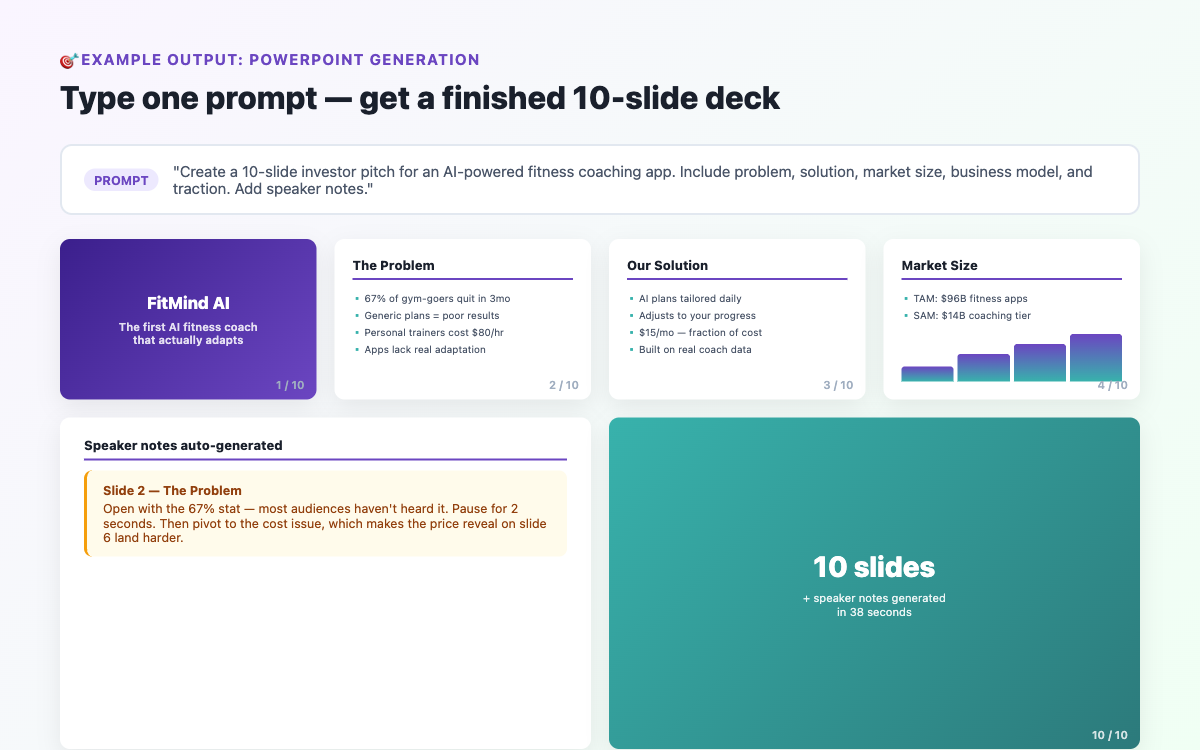
Claude Cowork mode doesn’t just describe what a presentation should look like - it builds a real .pptx file that opens directly in Microsoft PowerPoint or Google Slides. You get properly structured slides with titles, bullet points, and optional speaker notes. No templates to buy, no design software to learn.
Claude Cowork mode can create virtually any presentation you would normally build in PowerPoint. Business pitches, client proposals, training decks, team briefings, school projects, conference talks - the format is flexible. The key to a great result is specificity in your prompt. The more clearly you describe the topic, audience, number of slides, and tone, the better the output.
Open the Claude desktop application and make sure Cowork mode is active. Click the folder icon at the bottom of the chat to select the folder where you want your file saved. Without a selected folder, Claude won’t know where to put the output.
The most important thing you can do is write a detailed prompt. Here is the formula that works best:
Create a [number]-slide PowerPoint about [topic]. Audience: [who will see this] Purpose: [what you want them to think/do] Tone: [formal / casual / motivational] Structure: [any specific sections] Special requests: [speaker notes / data / call to action] Save as: [filename].pptx
Business Pitch Deck
Create a 12-slide investor pitch deck for GreenWrap, a sustainable packaging startup making compostable food packaging for restaurants. Audience: angel investors. Tone: confident and professional. Slides: Problem, Solution, Market Size, Product, Business Model, Traction, Team, Financials, Competition, Why Now, Ask (raising £250k), Contact. Add 2-3 talking points in speaker notes per slide. Save as "GreenWrap-Pitch.pptx".
Staff Training Presentation
Create a 15-slide training presentation on "Customer Service Best Practices" for new retail staff. Audience: first-job retail employees. Tone: friendly and practical. Cover: why service matters, 5 principles of great service, handling complaints step by step, common mistakes, and a 3-question quiz at the end. Keep bullet points to 5 words max. Save as "Customer-Service-Training.pptx".
Monthly Team Update
Create a 10-slide monthly update for my team of 6. Tone: honest and motivating. Include: last month highlights, key metrics (revenue +12%, 3 new clients, 1 churn), challenges we faced, May focus areas, and a team shout-out slide. Save as "Team-Update-April-2026.pptx".
Open the .pptx in PowerPoint or Google Slides, review the content, and then ask Claude to make changes in the same conversation - add slides, expand sections, adjust tone. You do not need to start from scratch.
Expand the market size slide to include total addressable market, serviceable market, and our target segment. Also make the closing slide more confident in tone. Update the file.
Specify slide count. If you have a time limit (10 minutes = ~10 slides), state it clearly upfront.
Ask for speaker notes. Adding "include speaker notes with 2-3 talking points per slide" turns the deck into a ready-to-present package.
Describe your audience precisely. "Non-technical senior managers who care about ROI" produces very different slides to "engineering team wanting technical depth."
Apply your branding afterwards. Claude produces structure and content - open the file in PowerPoint and apply your company theme, colours, and logo on top.
Does it work with Google Slides? Yes - import the .pptx via File → Import slides in Google Slides.
Can it add images? Claude generates text and structure. Add your own images manually in PowerPoint afterwards.
Can it improve an existing presentation? Yes - upload your .pptx and ask Claude to rewrite content, restructure slides, or add sections.
Ready to try it? See the Getting Started guide to install Claude desktop. For more document and spreadsheet tips, visit Tips & Tricks.
Join the community for insights, updates and practical how-tos.